What are you looking for?
Search

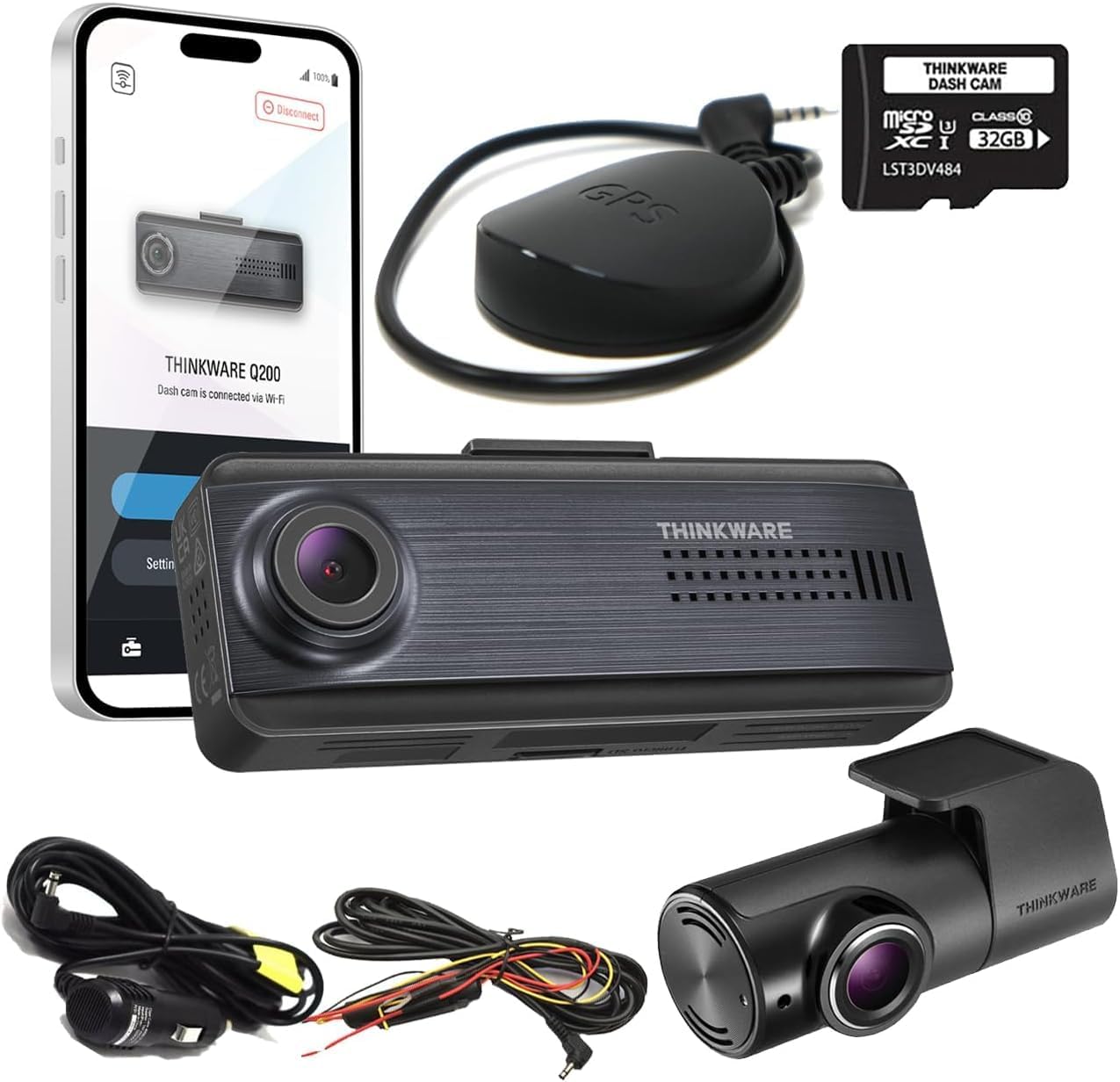
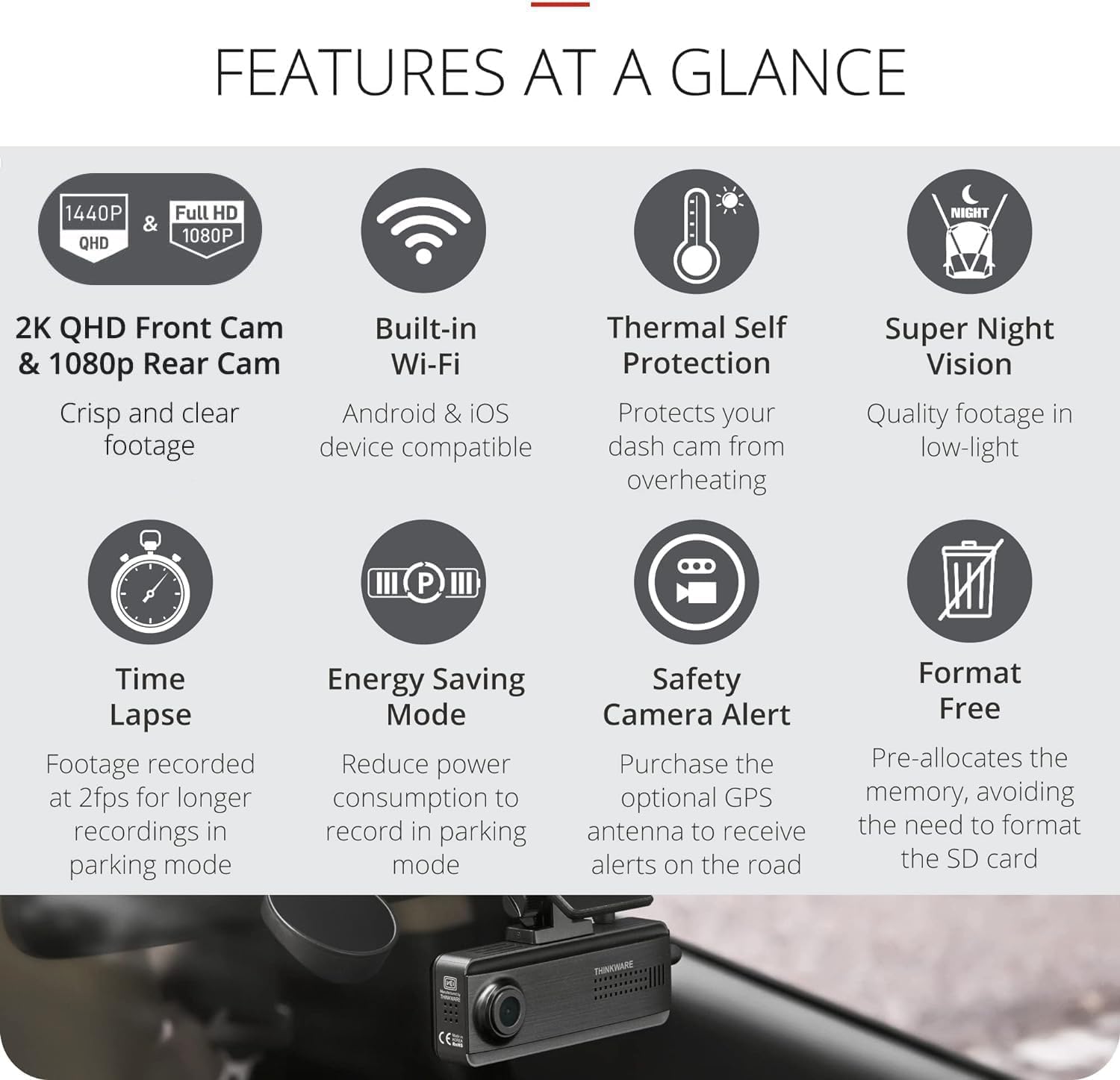
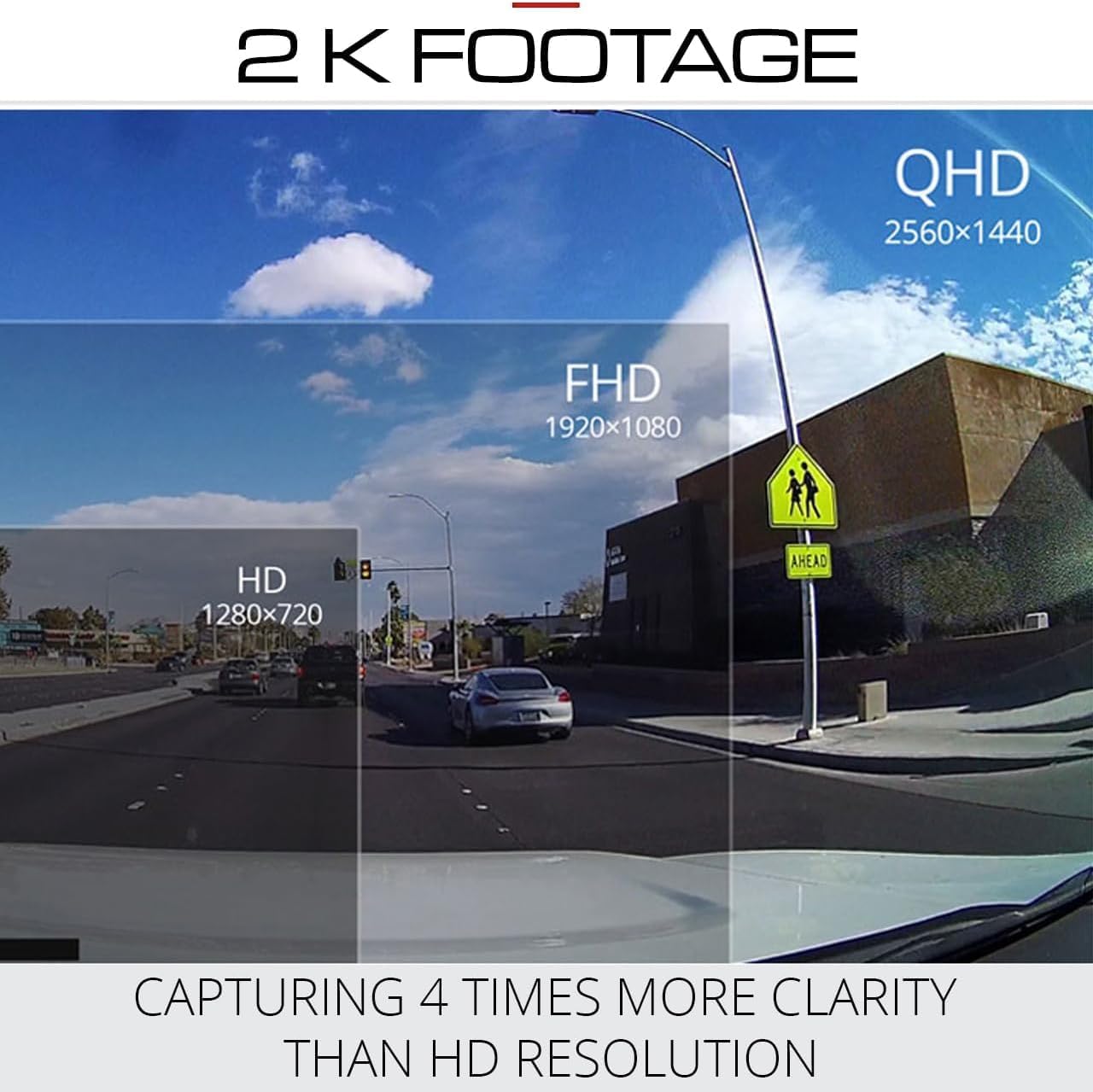
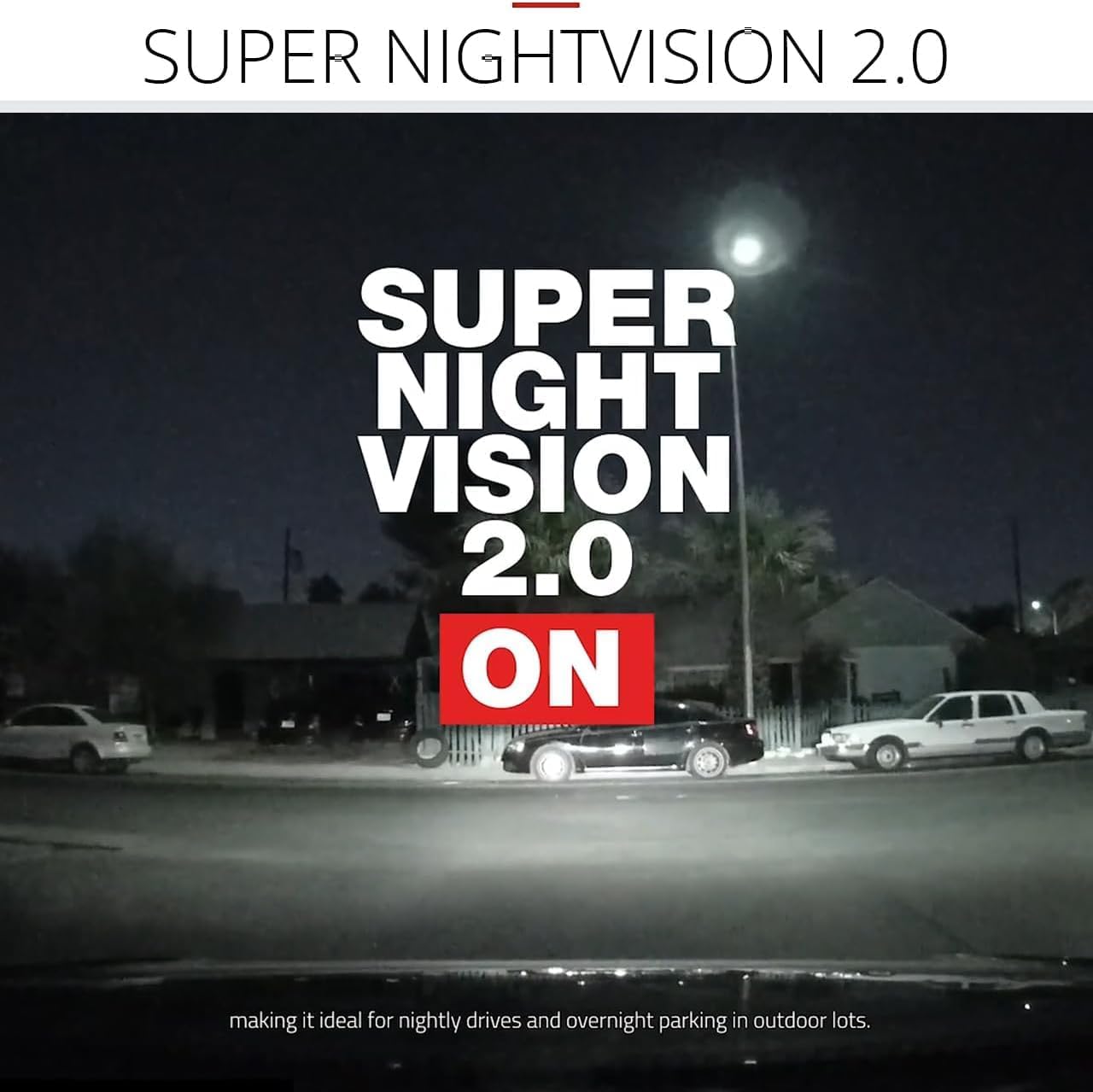
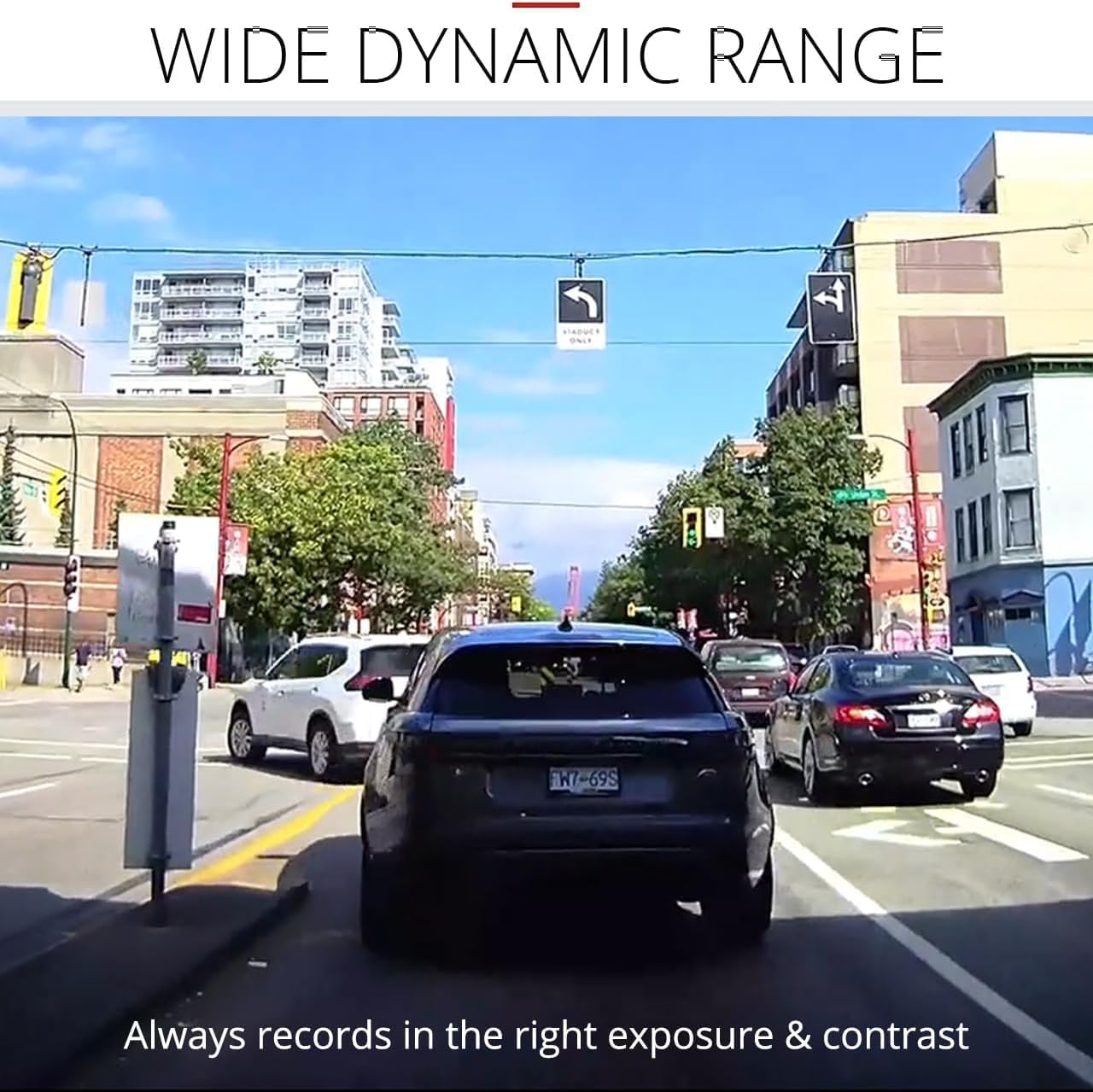
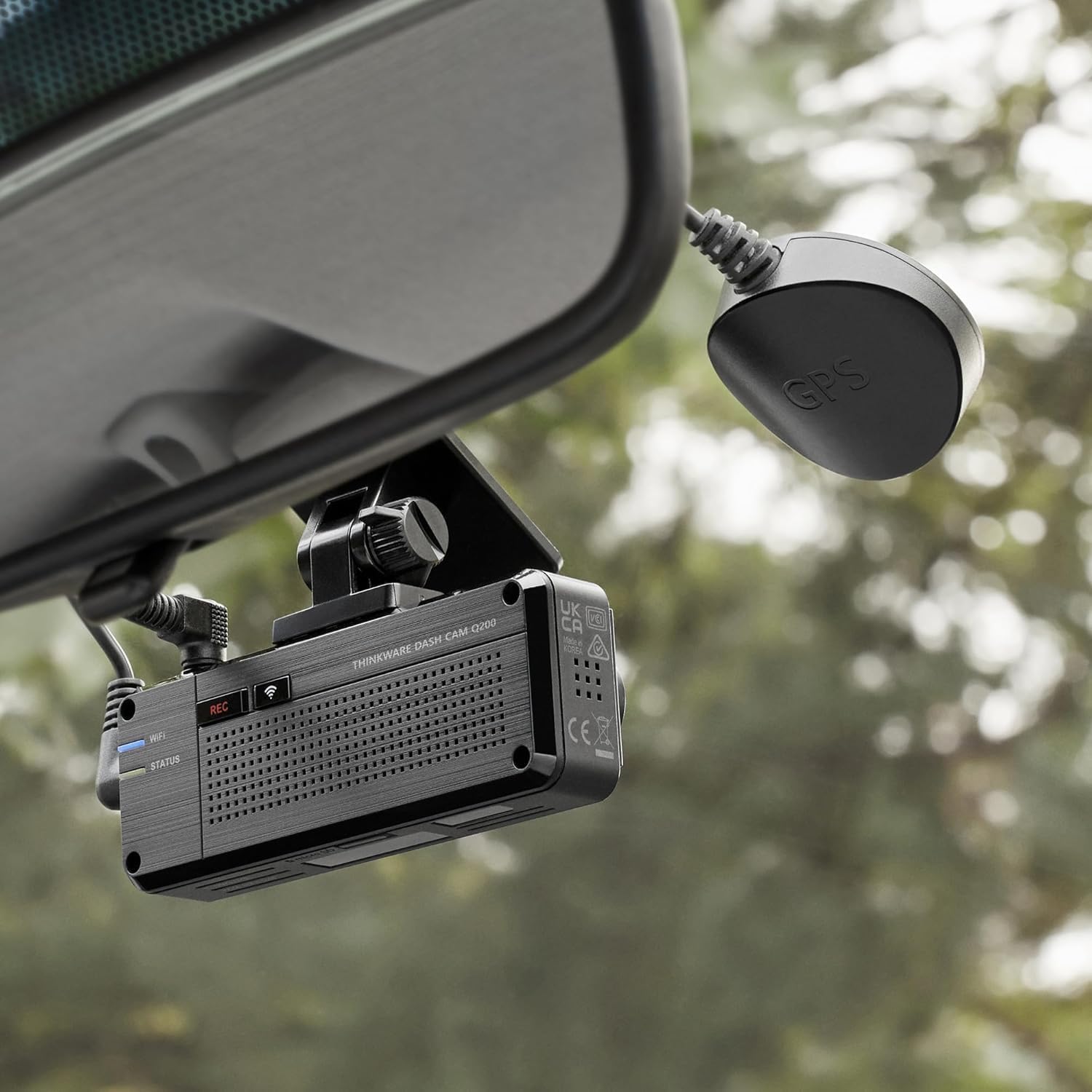
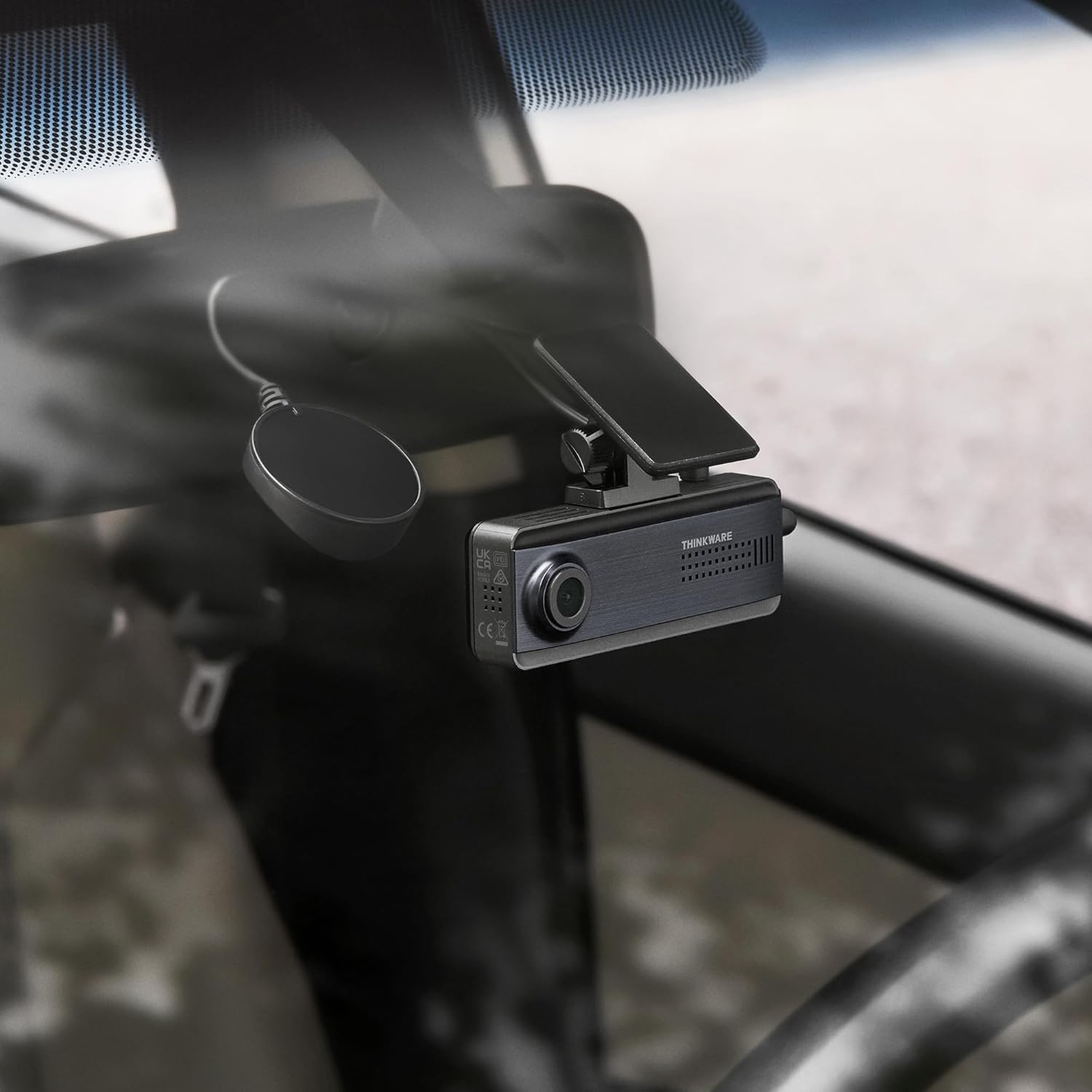
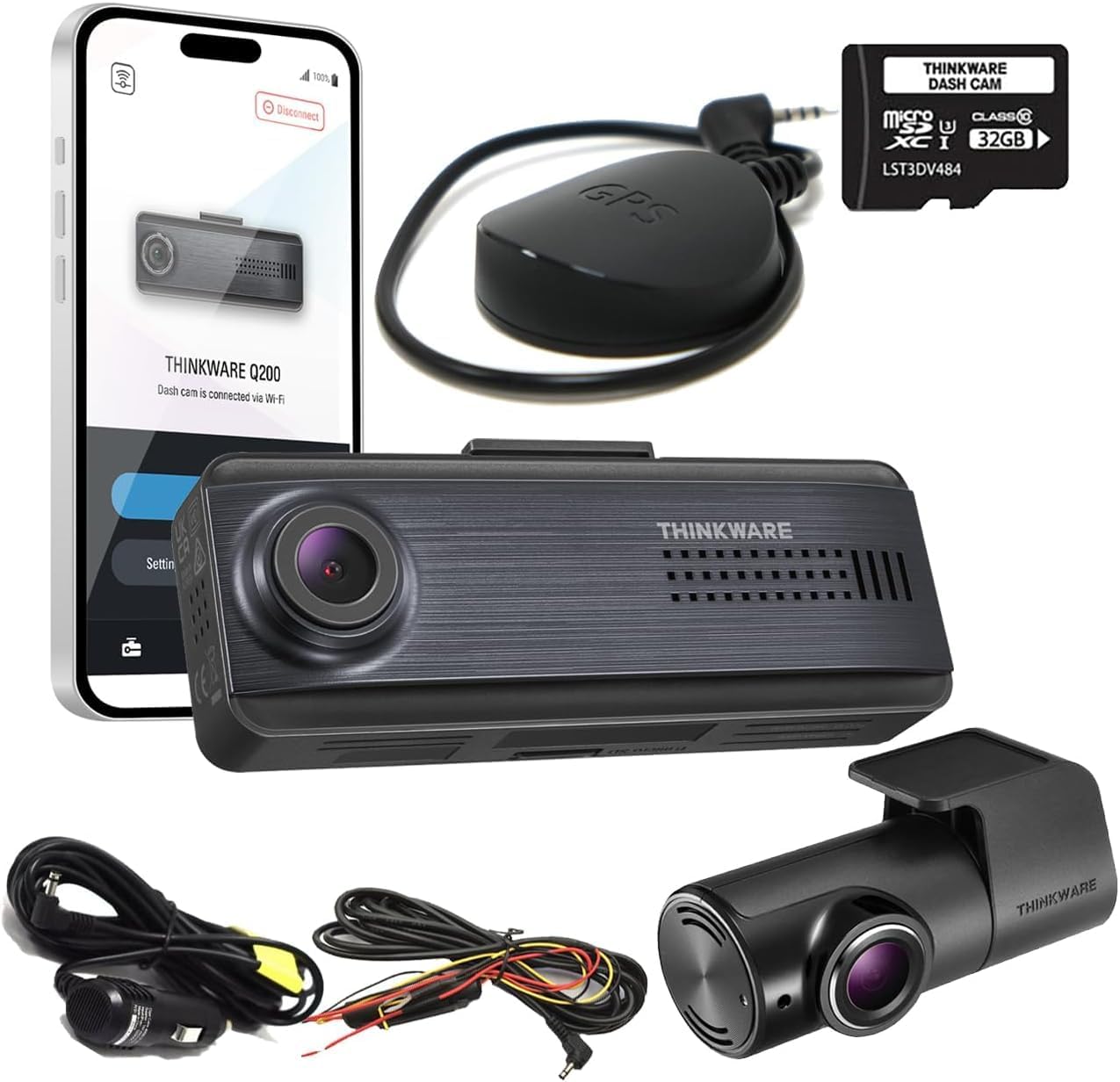
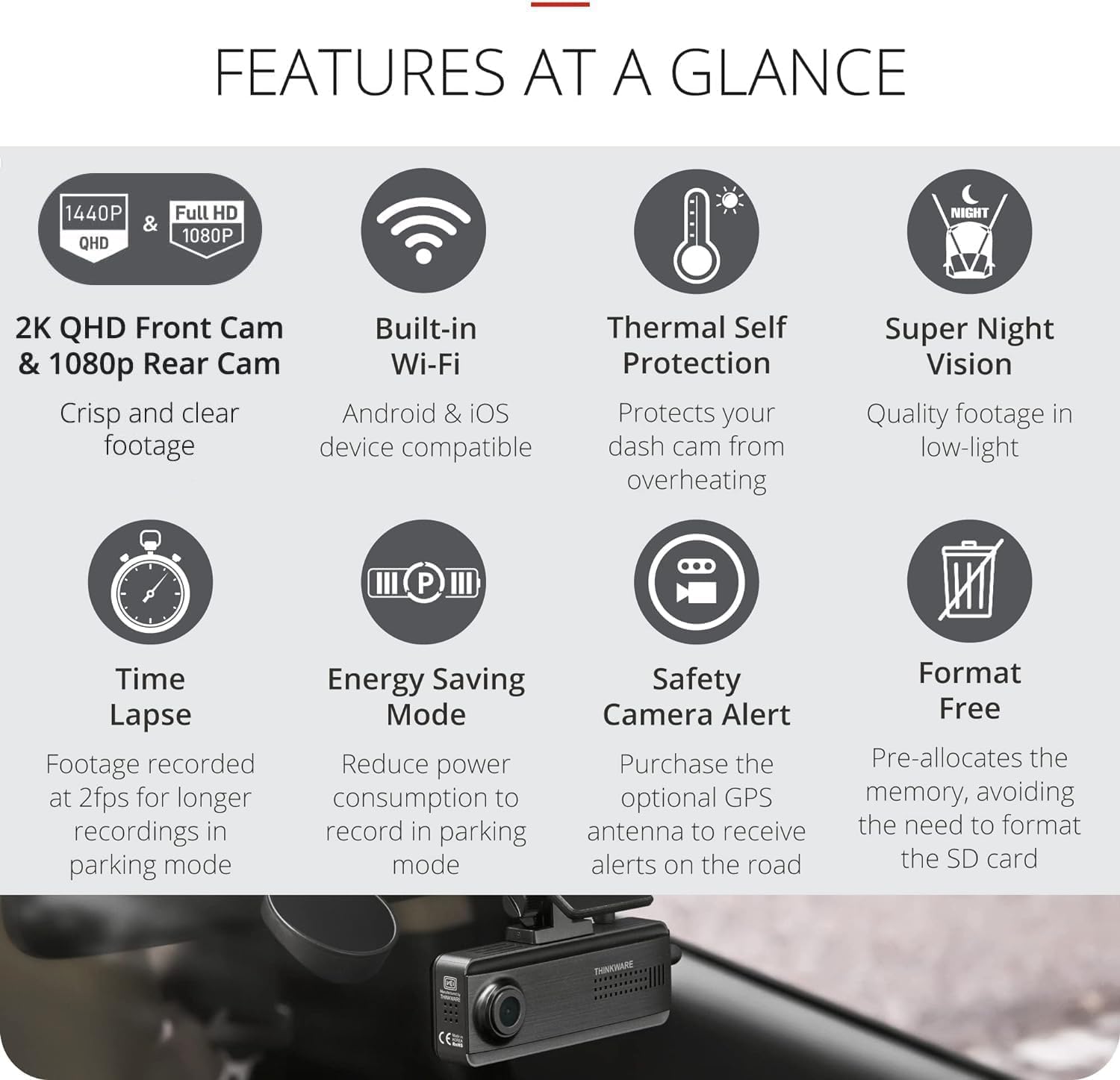
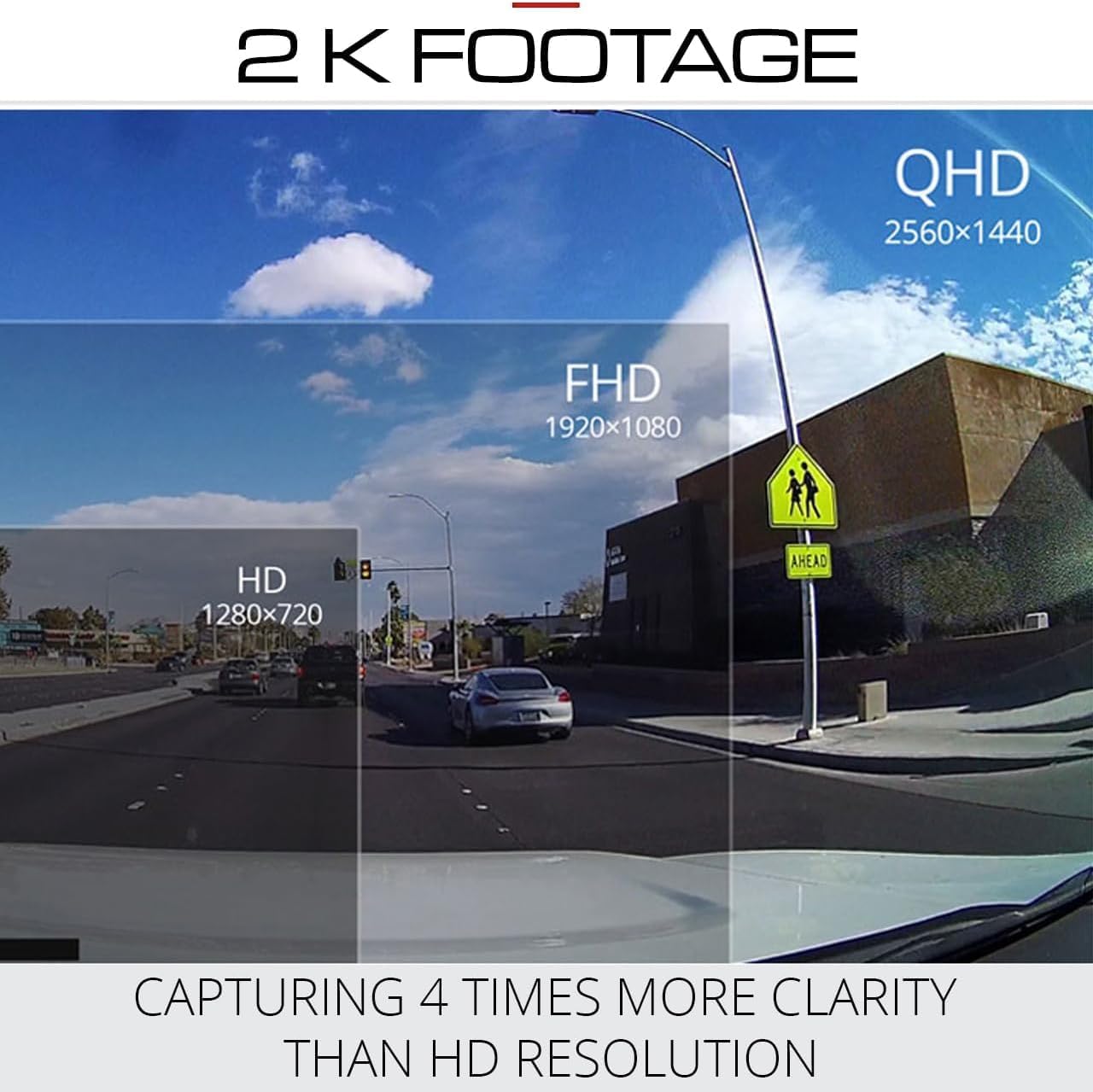
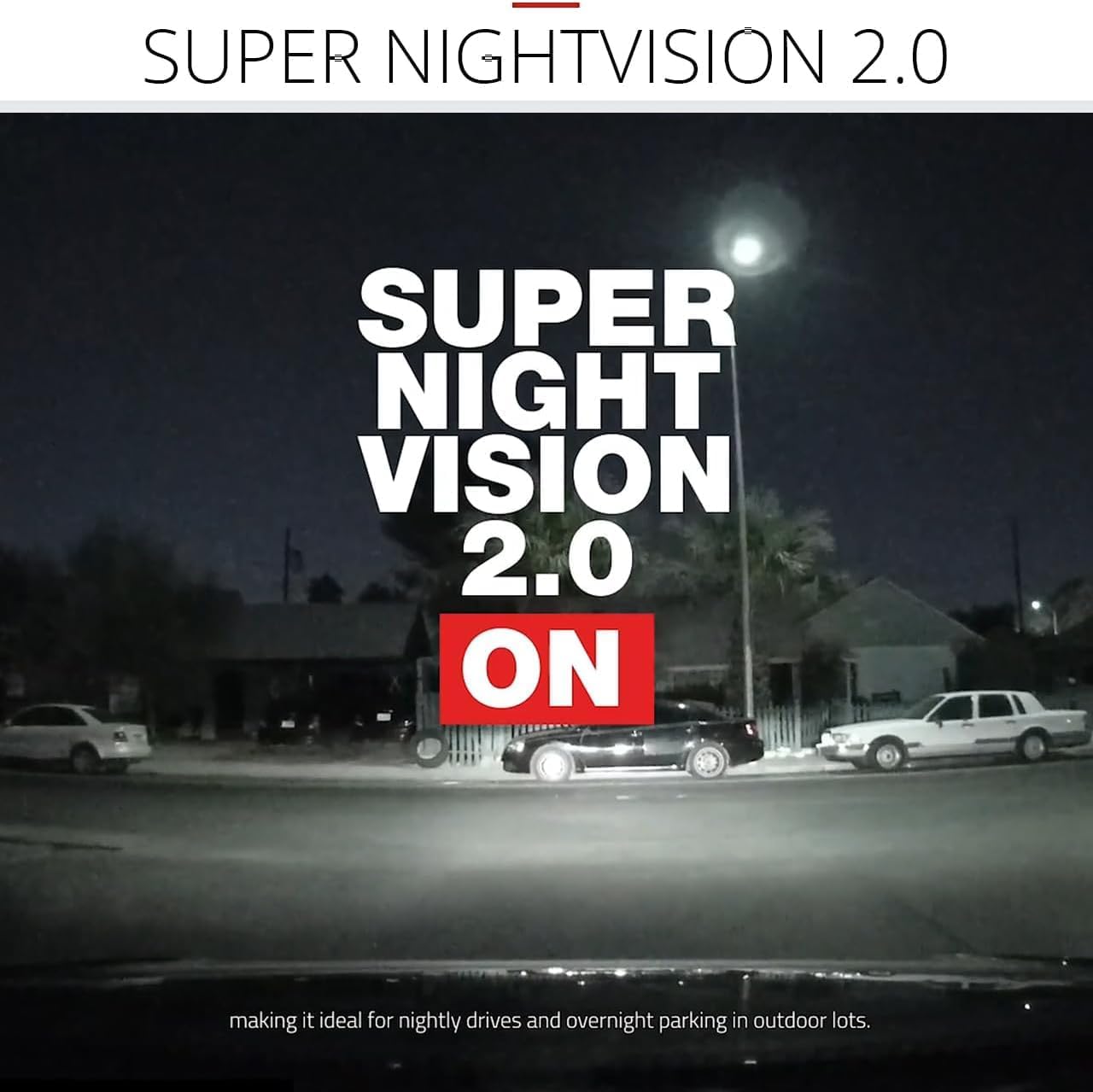
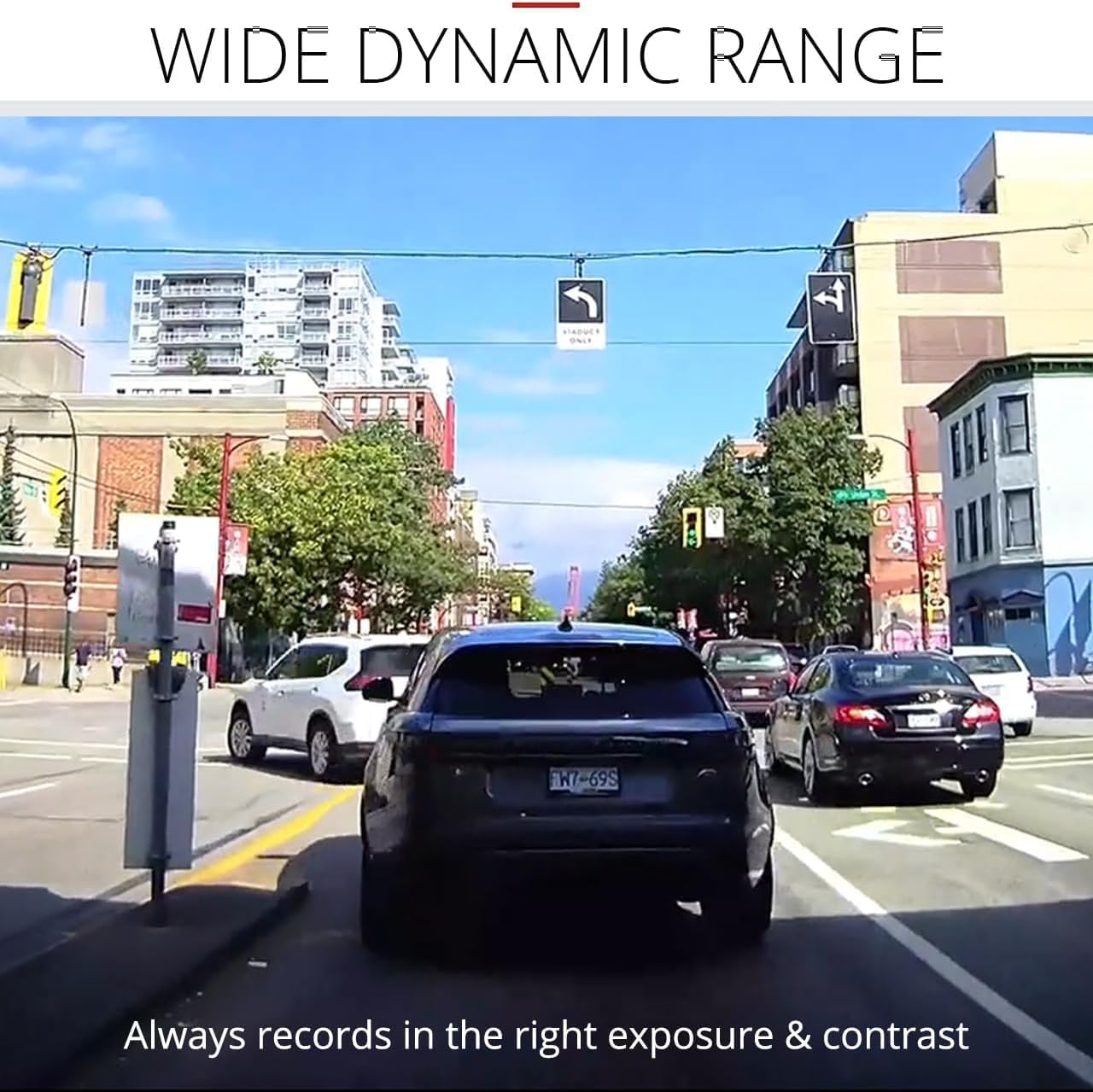
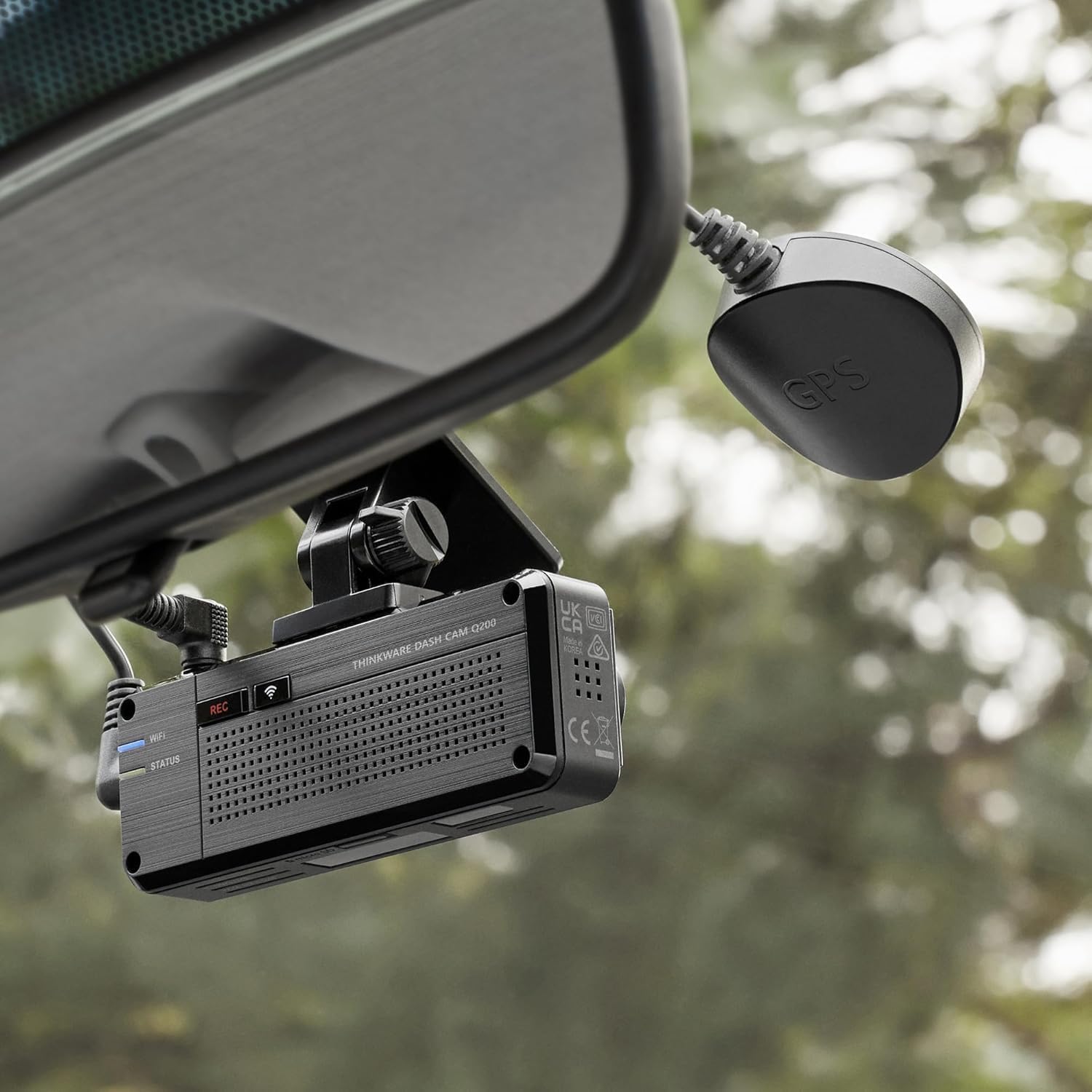
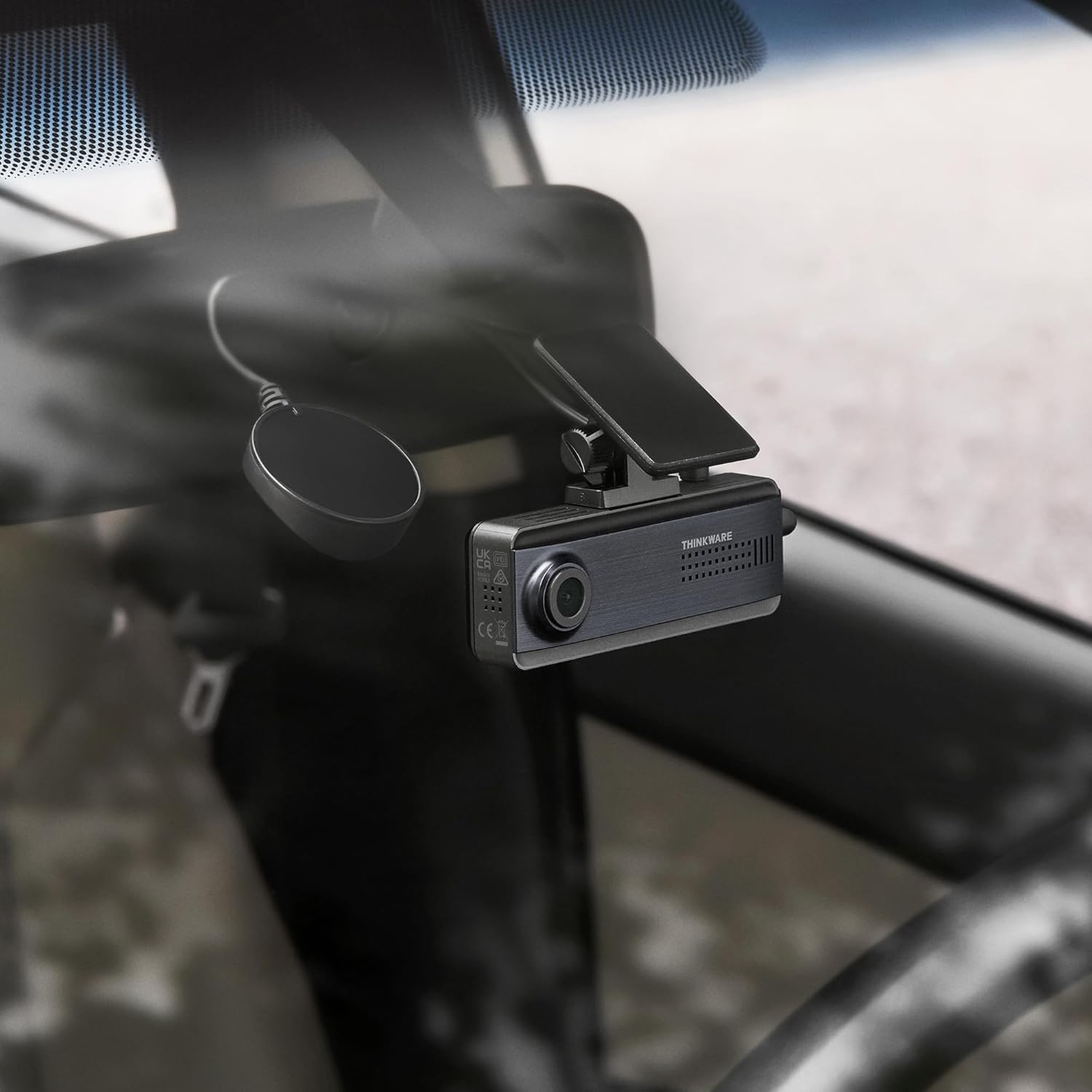

When it comes to capturing road incidents or helping you drive safely the Q200 has you covered. Equipped with a high-resolution 2K QHD image sensor the Q200 lets you capture every moment of your drive in crystal-clear detail even in low-light conditions.
1Front 2K QHD2Super Night Vision 2.03Enhanced Video Quality1Parking Modes2Smart Parking Recording3Energy Saving Mode4Time Lapse1Easy Wi-Fi Pairing2ADAS3What's In The BoxHow do I enable Parking Mode?
Power the dash cam via hardwiring OBD-II or iVolt battery. Connect to the app via Wi-Fi or Bluetooth go to Dash Cam Settings > Record Settings and select your preferred Parking Surveillance mode.
Which Mobile App should I use?
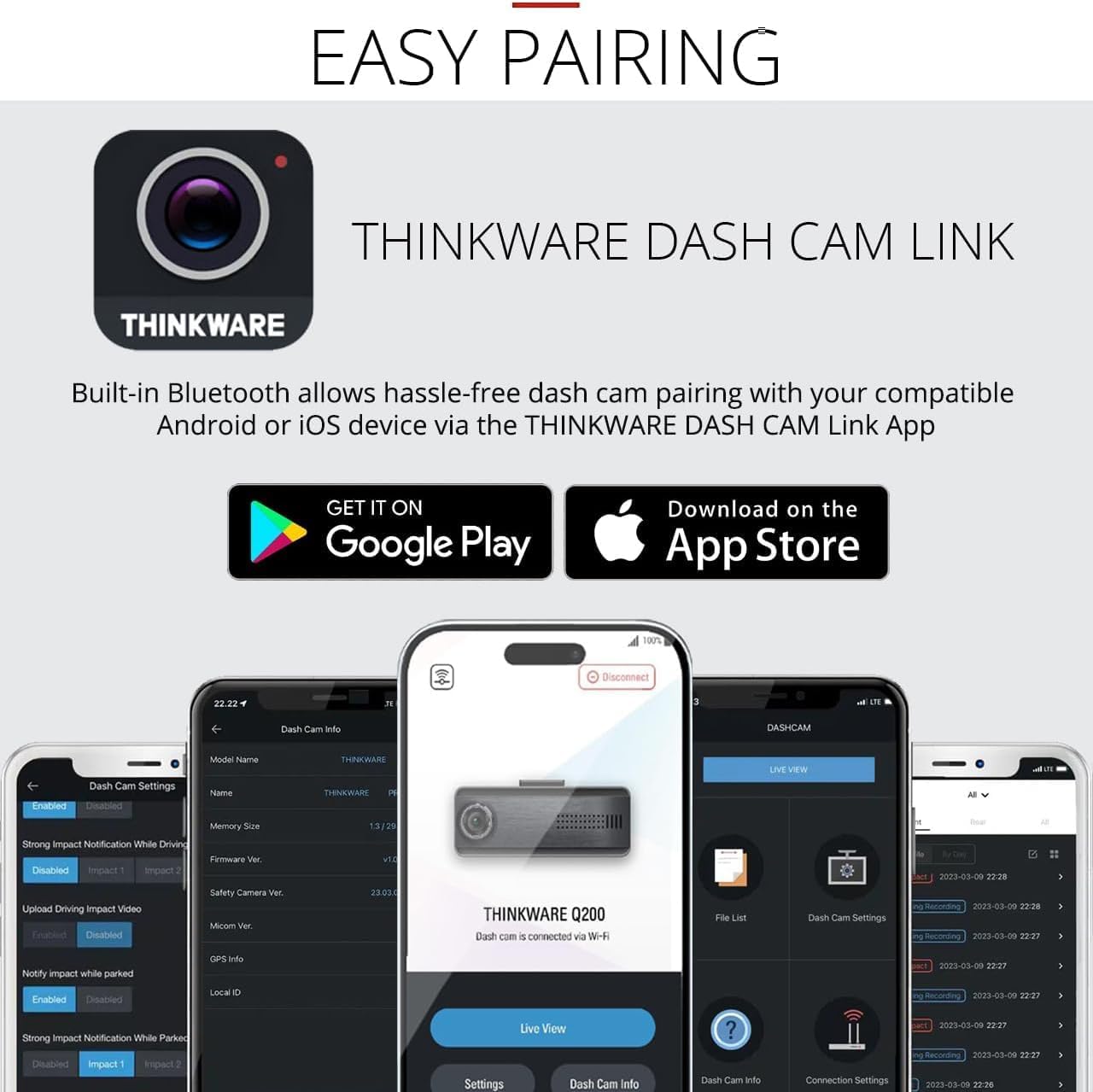
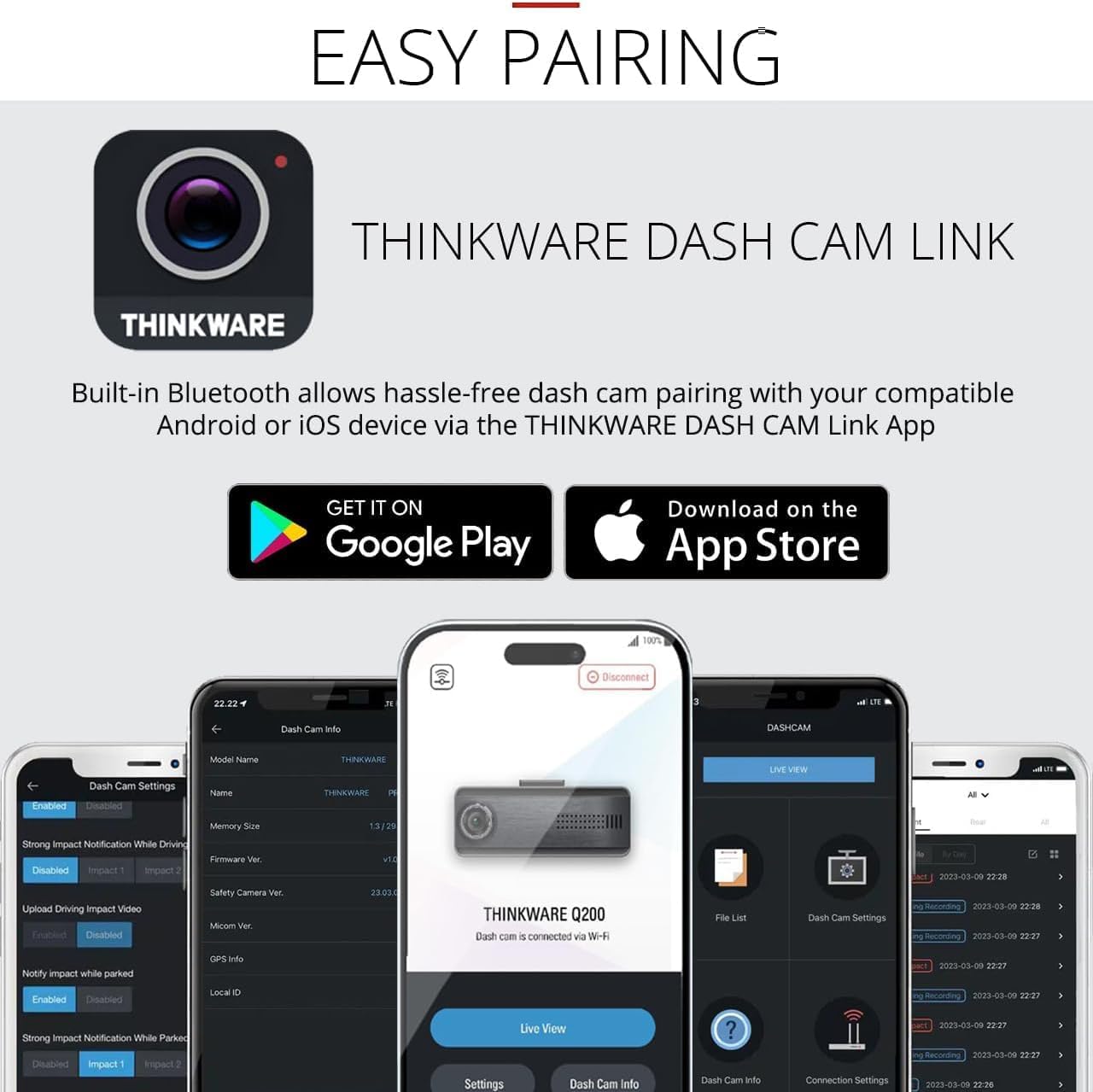
Download DASH CAM LINK app to review footage and adjust dash cam settings.
Why won't my dash cam connect to the app?
Make sure Wi-Fi and Bluetooth is on and you're connected to the dash cam. Disconnect Apple CarPlay or Android Auto as they can block the connection. If issue persists please contact our support team for help.
My dash cam will not power on.
Test with a 12V car charger cable. If it powers on check your hardwiring cable OBD-II cable or iVolt battery. If you don't have a 12V car charger or the dash cam doesn't power on contact our support team for help.
How do I reset my dash cam?
Hold the REC and MIC buttons at the same time until the device begins to beep. The dash cam will then restart reverting to default which will erase the microSD card and all recording footage. Be sure to save all crucial footage beforehand.
Q200 Dash Cam
How do I enable Parking Mode?
Which Mobile App should I use?
Why won't my dash cam connect to the app?
My dash cam will not power on.
How do I reset my dash cam?

You have successfully commented, please wait for review
Copied Successfully
You can enjoy up to 1 free gift!